

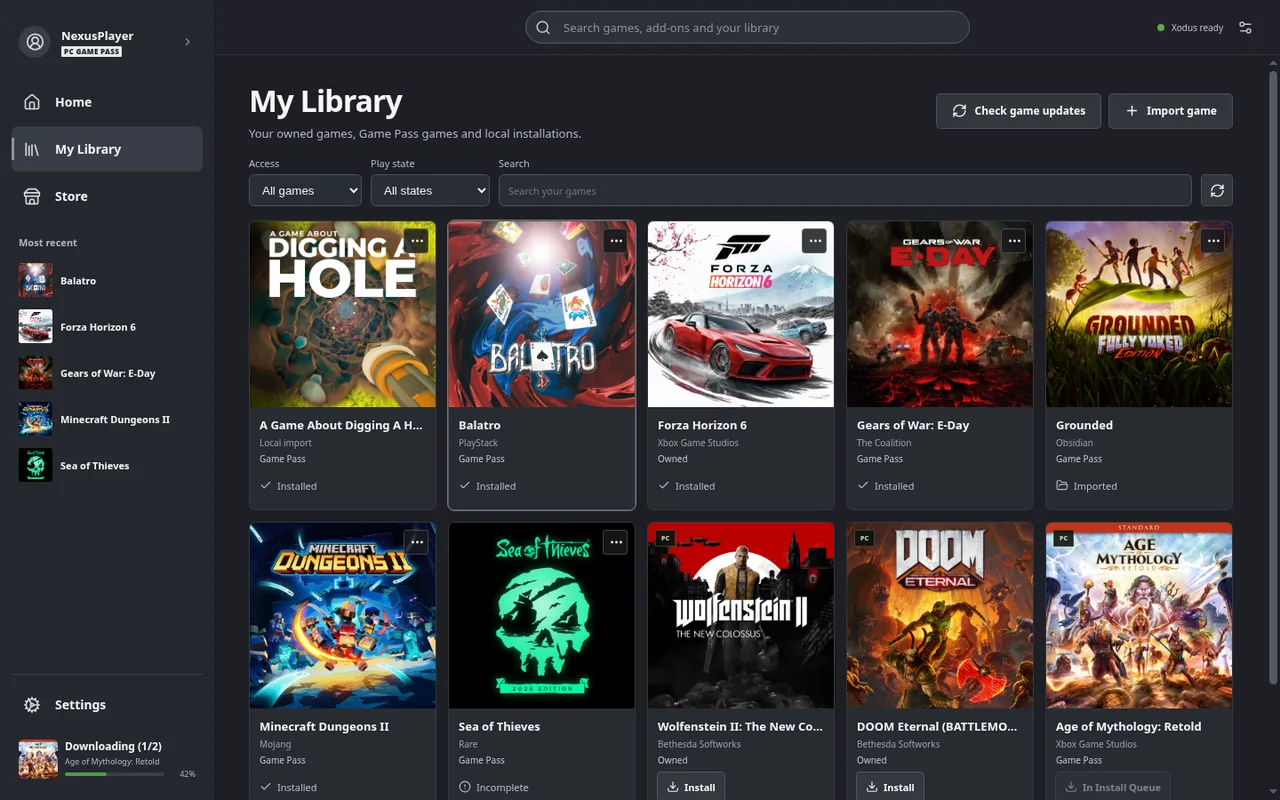
Xodus Nexus can install and run compatible Microsoft Store and PC Game Pass titles on Linux without installing Windows. It is an independent project, not an official Microsoft application or an official release from the original Xodus developers. Support for Steam Deck and similar handhelds remains experimental.
This is different from cloud gaming: game files are downloaded and run locally through a compatibility layer based on Proton and XGameRuntime. Storage, the game’s requirements and system compatibility therefore matter, alongside the connection needed for downloads and account authentication.
Before downloading
You need a valid purchase or a subscription granting access to the game. Nexus checks licenses; it does not unlock the entire catalog or turn subscription access into permanent ownership. Its compatibility list combines testing and community reports rather than certifying identical results on every machine.
Launcher version 0.3.8, released on October 19, improves controller navigation, game pages and license-error messages. Its release notes also recommend backend version 0.2.8 for accompanying account and Xbox activity improvements.
The documented Steam Deck setup
- Switch to Desktop Mode and download the Linux x86_64 AppImage from the releases in the domsvoboda/xodus-nexus repository.
- Allow the file to run as a program through its properties, then open it. On SteamOS, the guide recommends AppImage without altering the read-only system partition.
- In Settings, install the Nexus backend and Nexus runtime. Complete desktop-keyring setup or unlock prompts before returning to Game Mode.
- Sign in to your Microsoft account, check the title’s compatibility and download it through the library. A Game Pass entitlement requires an active qualifying subscription.
- Choose Add Nexus to Steam to create a Steam shortcut. This feature requires native Linux Steam; the documentation does not yet support Flatpak Steam.
When authentication or a game fails
If sign-in stalls while waiting for a passkey, the current guide says that Continue in browser requires Google Chrome. KDE’s keyring must be enabled and unlocked; prompts may not be visible from Game Mode.
Reaching a game’s menu does not prove that gameplay or online sessions work. The compatibility list distinguishes playable games, partial support and failures. Online services and anti-cheat systems can also impose restrictions, making the specific title worth checking before committing to a large download.
The developer’s release notes explicitly describe handheld support as experimental. That qualification matters more than a broad claim that a launcher brings a whole subscription catalog to a device: compatibility is assessed per game and setup.
This guide summarizes the project’s published procedure, not an original Steam Deck test. A local alternative to Windows is a meaningful development, but it does not justify the claim that all Game Pass titles now work on Linux. Start with the game you want to play, then decide whether this tool meets that need.