
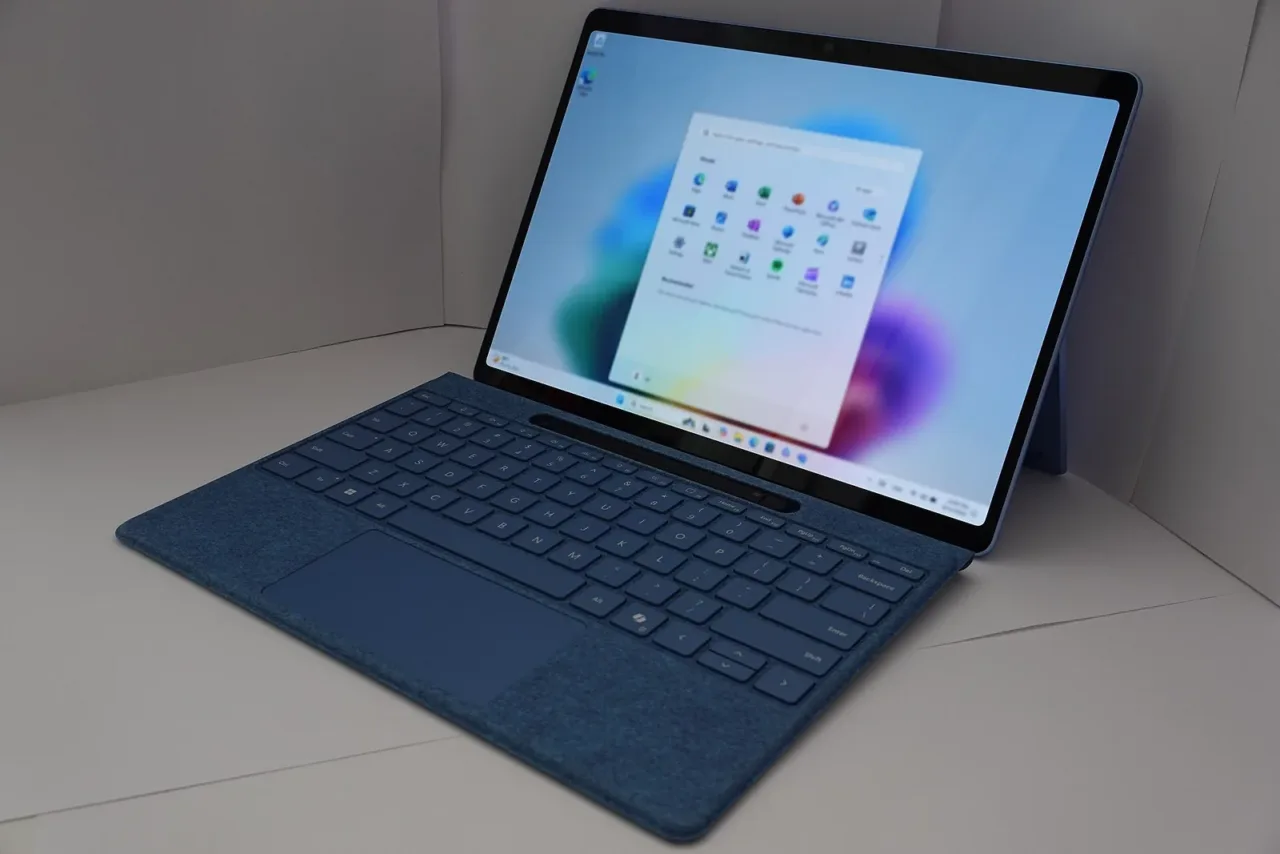
Windows 11 26H2 is now part of Microsoft’s rollout for eligible devices. The update brings together improvements introduced gradually in previous releases and can install through an enablement package on compatible systems. That allows a smaller download and a short installation in many cases, although availability depends on the device.
Claims that every machine will gain several gigabytes of free RAM need qualification: Microsoft’s official summary does not promise a universal reduction of that size. User observations can be useful, but cannot replace a comparison with the same applications, services, drivers and startup conditions.
Changes documented by Microsoft
Microsoft describes faster startup and improved responsiveness for File Explorer Home. It also lists search improvements, including better handling of mistyped application names and clearer identification of result types. These changes aim to reduce friction in operations repeated many times throughout the day.
The taskbar gains positioning options at the top and sides of the screen, alongside the bottom. Windows Update can combine eligible updates with the monthly security release to reduce restarts. Some AI features require additional services or licenses; installing 26H2 does not give every PC all available Copilot experiences.
How to tell whether your own PC improved
Choose two or three tasks you actually perform: opening a project, finding a file and launching a demanding application. Compare their times before and after while keeping the same power mode and background programs. Measure more than once, because a recently opened application may benefit from cached data.
The percentage of RAM occupied tells only part of the story. The system uses memory to accelerate operations and can release it when another application needs it. Look for fewer pauses, changes in disk activity and better application responsiveness. Lower memory use in an isolated screenshot does not, by itself, demonstrate a sustained improvement.
Use your device’s update channel
The usual route is Settings, then Windows Update. Microsoft rolls out the release gradually and can hold it back on devices with compatibility issues. If it is not offered yet, that does not establish a system failure. On company- or school-managed computers, timing may also depend on organizational update policies.
Before installing, save your work and check that important backups can be read. The official update history lists issues and recovery measures that change with each patch, so review it on the day you install. Recording the previous version and your critical applications makes changes easier to identify if a problem appears.
For an everyday PC, 26H2’s value lies in accumulated improvements and support, not a magic performance figure. Evaluating your actual tasks helps establish whether the update fixed a specific frustration, without treating another user’s positive experience as a guarantee for every hardware configuration.